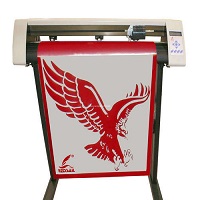
How to install the Redsail RS720C USB Driver to your PC
To make your PC communicate with your Redsail RS720C cutting plotter, you will need to install the USB Driver. To do this, just follow the below steps.
1. Download the Redsail RS720C USB Driver
* First of all you must download the correct Redsail RS720C USB Driver to your windows pc from this our page rahim-soft.net, if you are installing the plotter on a 32-bit pc.
2. Extract the Driver Files
* After you download the driver from either of the links above, if it appears compressed such as a ZIP file, you will need to use an archiver such as WinRAR or 7-Zip to unzip the drivers. Then, just open up the unzipped driver file in the newly created folder.
3. Install the Driver
* Within the unzipped driver file folder you should see an installer application (likely called 'setup.exe' or 'install.exe'). You should see this within a folder called "Driver" or possibly "Redsail USB".
* Now right click over the 'setup.exe' application, and click "Run as Administrator". Follow the instructions given within the install wizard, and accept the license agreement etc to complete the driver installation.
4. Connect your Redsail RS720C Plotter
* Once the driver has finished installation, power up your Redsail RS720C cutting plotter, then plug your plotter in to your PC using the supplied USB lead. Your pc should recognise the new hardware and attempt to install the drivers that you have just put on your PC.
5. Check the Driver Installation in Device Manager
* On your PC, type 'Device Manager' in the Windows search bar, then press 'Enter'. Your Device Manager window should then open.
* In the Device Manager, scroll down to and expand the section entitled "Ports (COM & LPT)" and the "Universal Serial Bus controllers". You should see your Redsail USB Device listed within one of these two. You should not see a yellow exclamation mark next to the name.
6. Configure your Cutting Software
* Now start your cutting software, which is used with the Redsail RS720C plotter ( such as SignCut, Easy Cut Studio etc. ), go into the device settings and select your Redsail RS720C as the connected plotter, selecting the correct communication port as seen in the Device Manager above.
* Then you can try cutting out a test job to ensure all works as expected.
Troubleshooting Tips
* If your plotter is not found, try using another USB port on your computer, or use another USB lead.
* Try to reboot your computer after driver installation.
* Remove your USBhub if you have connected your plotter using this, and plug your plotter directly to a USB port on the pc.
* Remove anduninstallany old plotter drivers that you may have installed.